
TLDR:
Claude Code can be used from the Desktop app with a user-friendly UX or from directly within your terminal. Follow below to learn how to use it in your terminal.
Installing the CLI and using it are incredibly simple and give you a very powerful tool to work with that can manage your filesystem and build projects for you.
It’s not without its risks though as prompt injection can make it act maliciously, yet limiting access and privileges will reduce the likelihood of this.
Lately I’ve been seeing a lot of non-coders getting into using traditionally coder-centric environments like terminals and IDEs (Integrated Development Environments) because AI has made it much easier to do so!
So for this week’s post I decided to show how simple it is to use Claude Code through its CLI (Command Line Interface) within a terminal.
If this post resonates with you and you enjoy the content then please share it with a friend and get rewarded for doing so!

This blog goes out weekly to over 20,000 subscribers. Please message me if you’re interested in sponsorships or partnerships.
Claude Code CLI
A few weeks back I made quite a long and detailed post on how to build with Claude Code where I explained what Claude Code is, how to get started with it, how to use it to generate code, and then finally run and use what you’ve built.

I’d recommend you read this original post above if you haven’t, but as a quick recap Claude Code is an Anthropic product that lets users interact with Claude directly within their computer such that it can manage files on their filesystem and write code for them.
In my original post we used the Claude desktop app because it’s the most user-friendly way to interact with Claude and it’s what I’d recommend for most people.
However, lately I’ve been seeing a lot of non-coders getting into using traditionally coder-centric environments like terminals and IDEs (Integrated Development Environments) because AI has made it much easier to do so.
So this week I decided to run through how to install and use Claude Code’s Command Line Interface (CLI) directly from your computer’s terminal so that you can learn how to do it yourself and most importantly to show you that it’s not particularly scary.
Installing Claude Code CLI
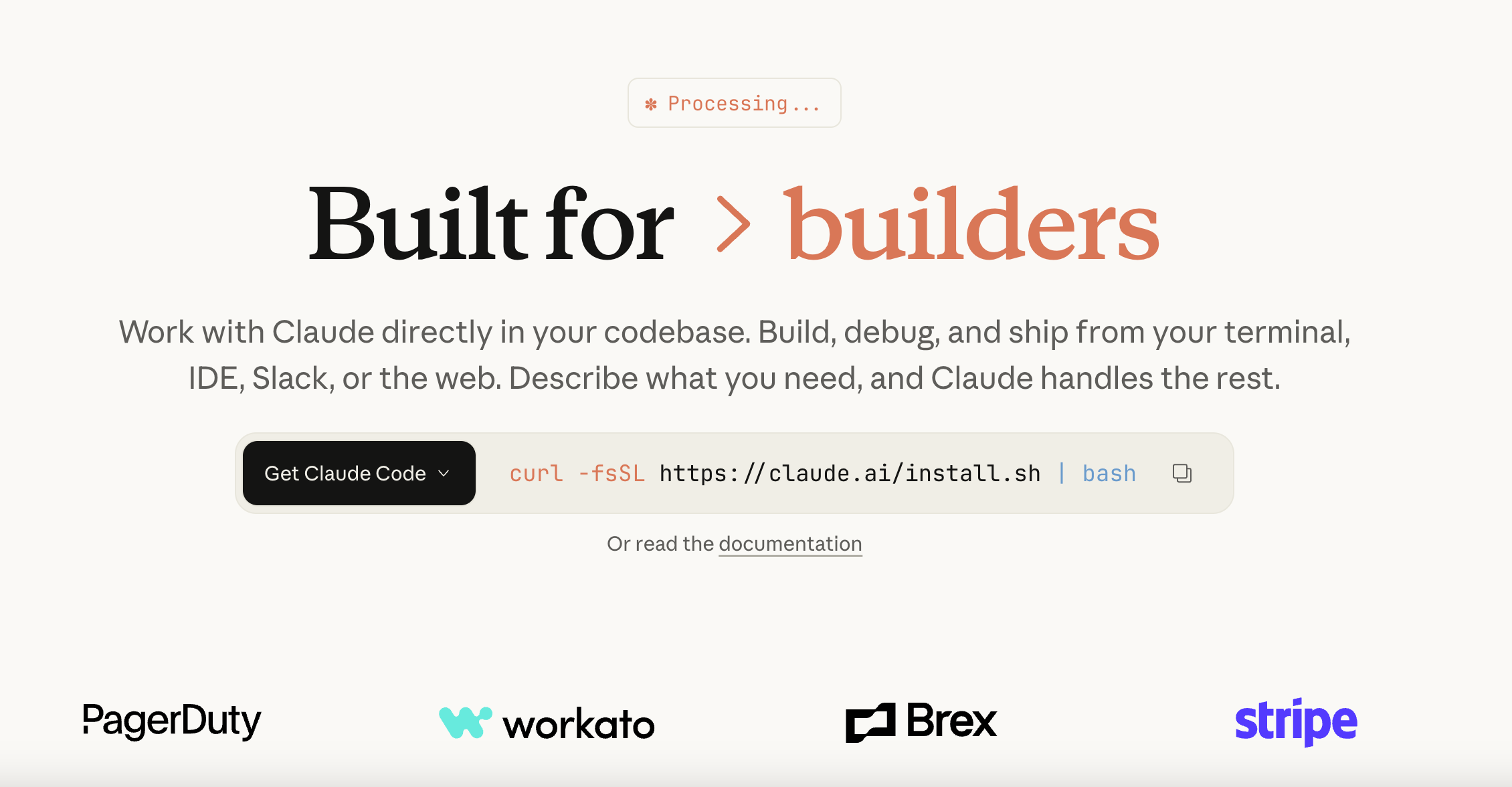
Installing the Claude Code CLI is super easy. First you need to open your terminal (follow this for Mac or and this for Windows) then go to the Claude Code product page to see the line of code it shows:
curl -fsSL https://claude.ai/install.sh | bash
Next just copy and paste this line into your terminal!
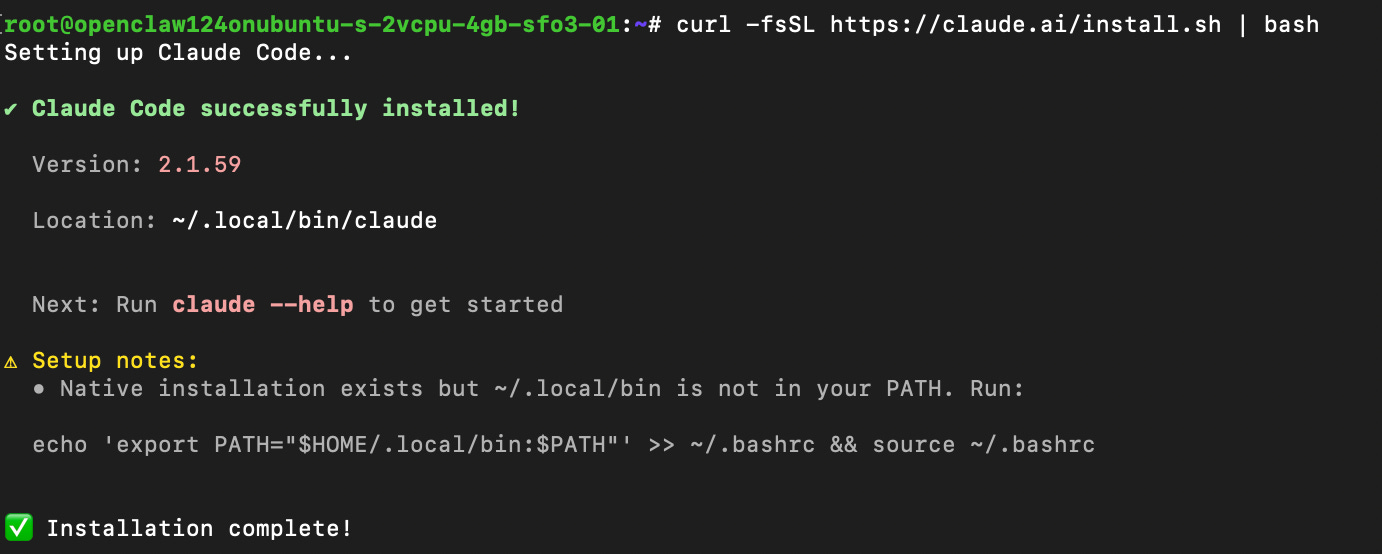
You’ll see the terminal show a few messages as Claude Code is being set up before you get an “Installation complete” message.
As you can see in the message about it explicitly said I needed to run the following command, so I did!
echo ‘export PATH=”$HOME/.local/bin:$PATH”’ >> ~/.bashrc && source ~/.bashrc
With just that you’ll have installed Claude Code! To then check that Claude’s working you can run a simple command like:
claude “say hello”
This will then bring up a visualisation to get you started with the Claude Code CLI.
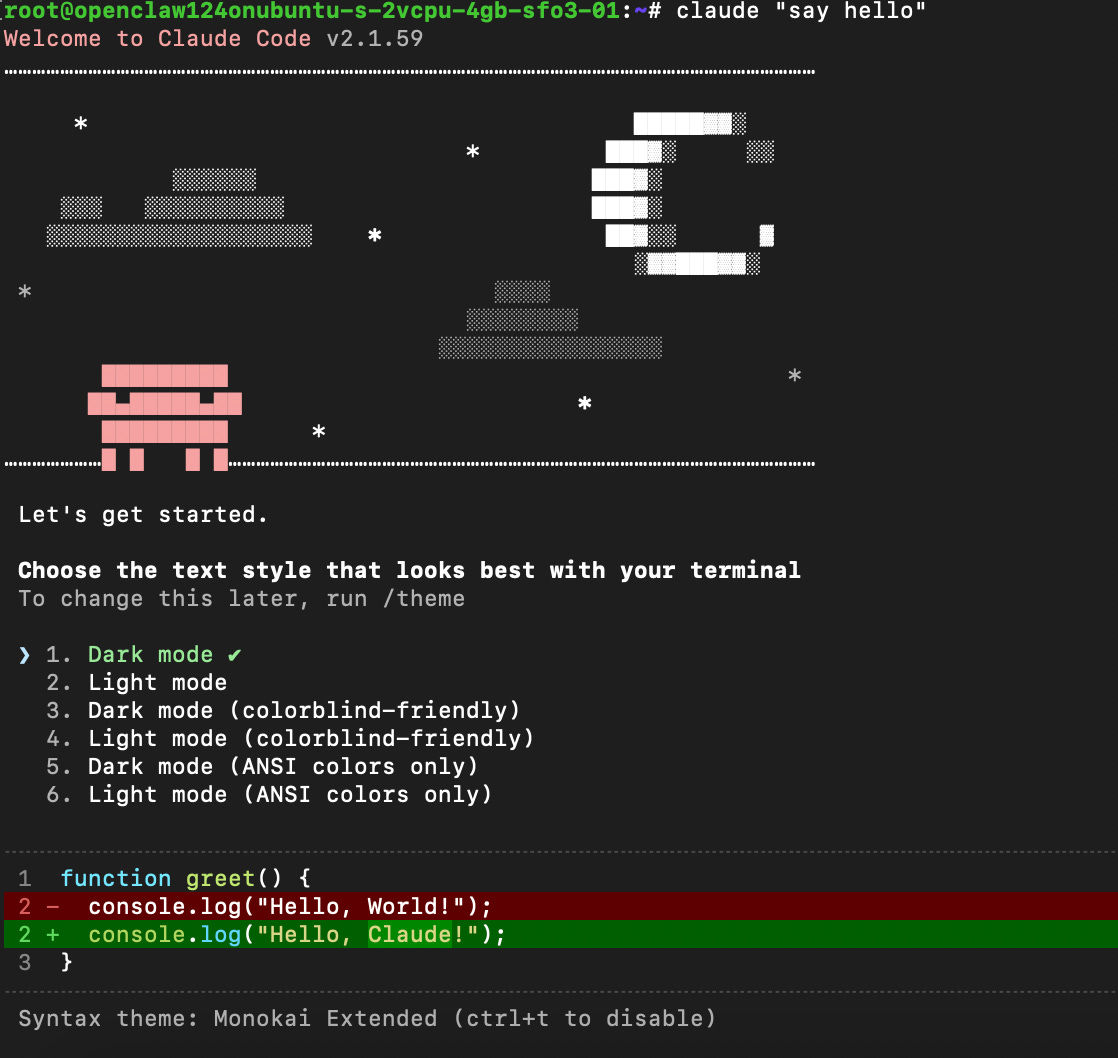
First you need to set your theme, then on hitting Enter it’ll ask you to select your subscription method.
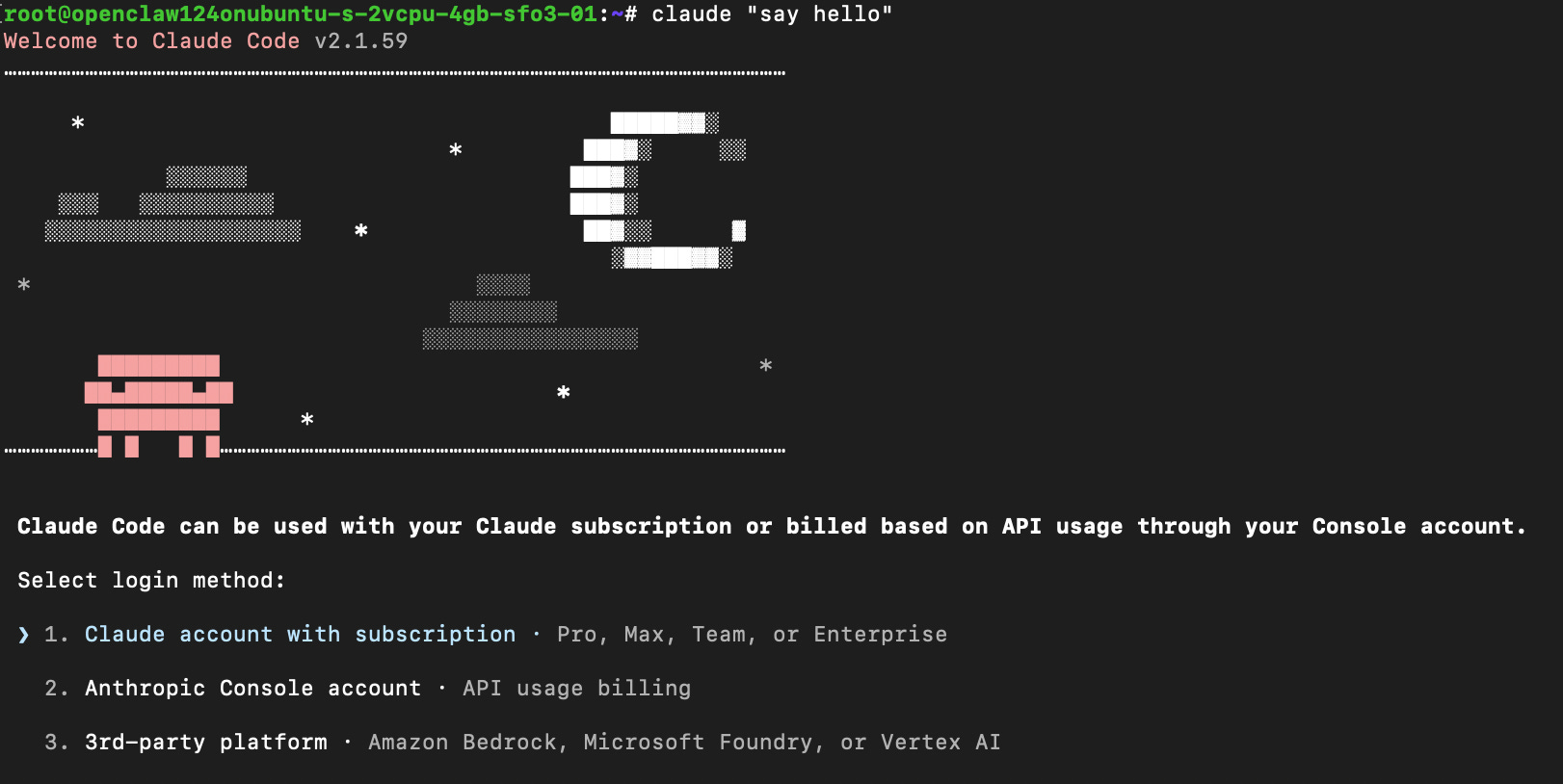
Select the first option to connect with your Claude subscription and the browser will pop up with a new screen where you can authorise the Claude Code CLI to user your subscription, and after this you’ll be prompted to paste a code back into the terminal.
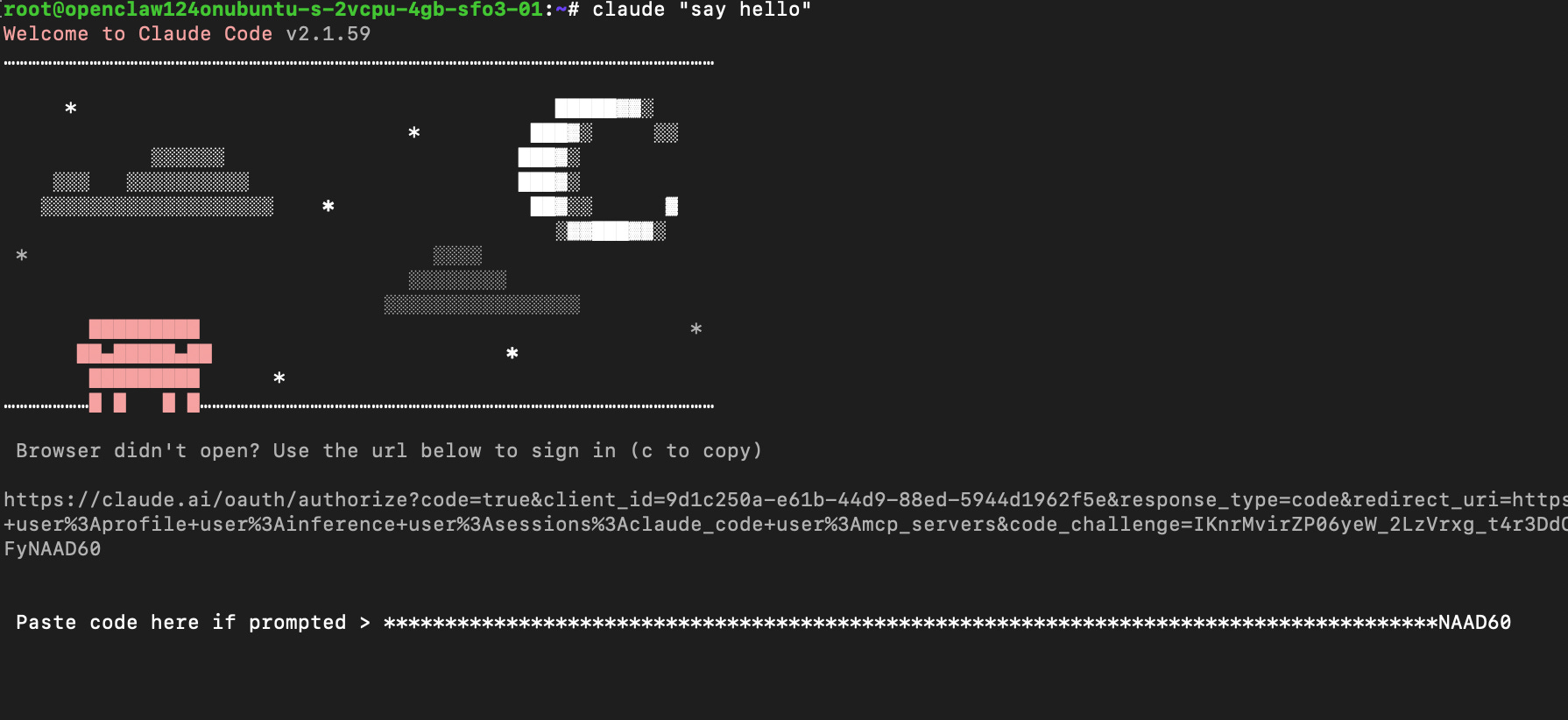
You should then see a “Login successful” message and a following “Security” message, which you can select Enter to skip through and then you’re ready to go!
The final message you’ll see before we get started is about accessing your workspace as Claude will regularly try to ask you if it’s ok for it to take an action for you.

You’ll just want to hit Enter for it so that it can “trust this folder”.
You may spot it says “/root” at the top, this is because in my example I am using a VPS with “root” access, in your machine though you’ll likely be doing this through your own user access which is safer and more recommended.
Note that if for some reason your installation didn’t succeed then you can check the documentation. The AI space moves so fast and by the time you’re reading this the installation process my have slightly changed.
Using the CLI
With the Claude Code CLI installed and logged in let’s now make use of it!
You’ll first see that our earlier “say hello” command has been replied to by Claude, in my case Claude replied with “Hello! How can I can help you today?”.
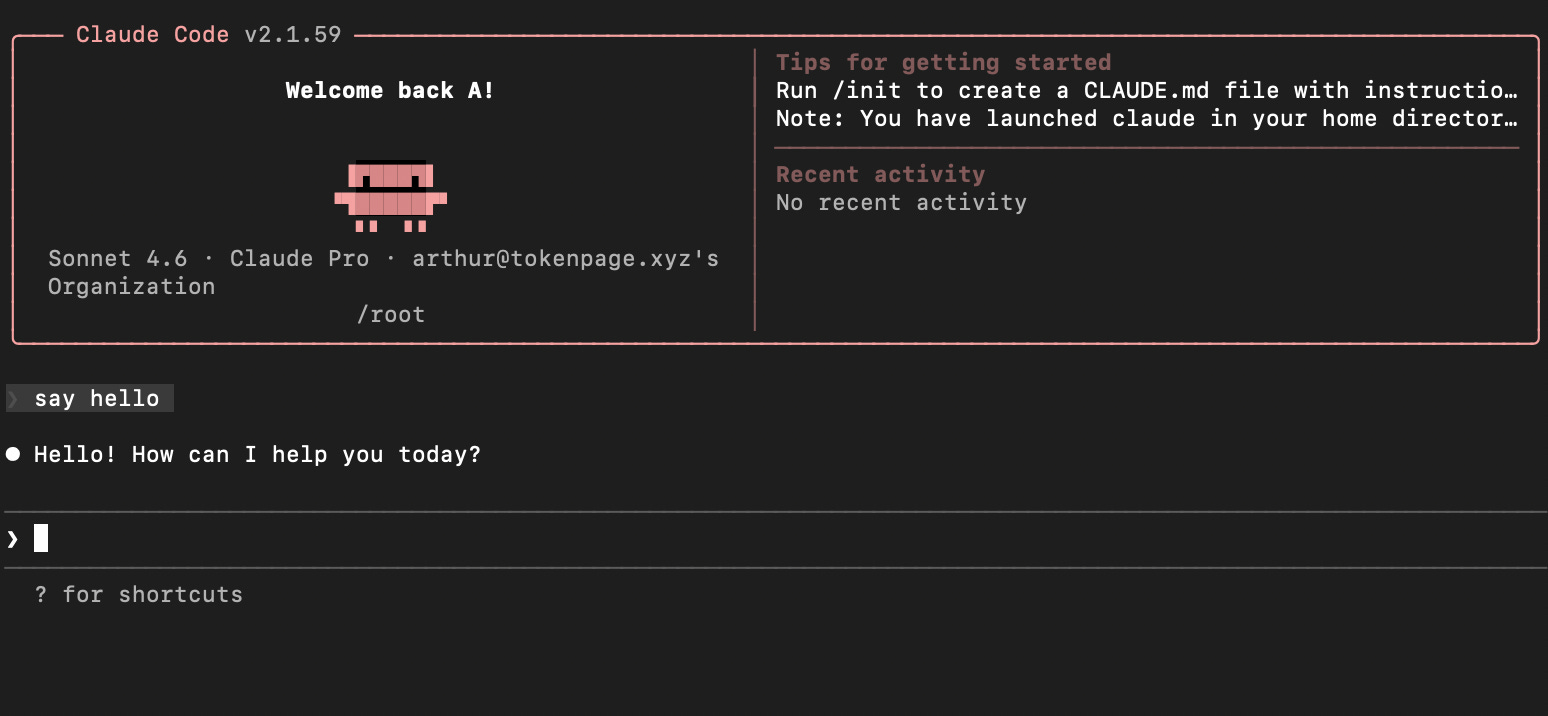
Now let’s ask it to do something for us, for example let me ask it to create a folder for us to work in, which I’m going to call pretty uncreatively “Script Test Folder”.
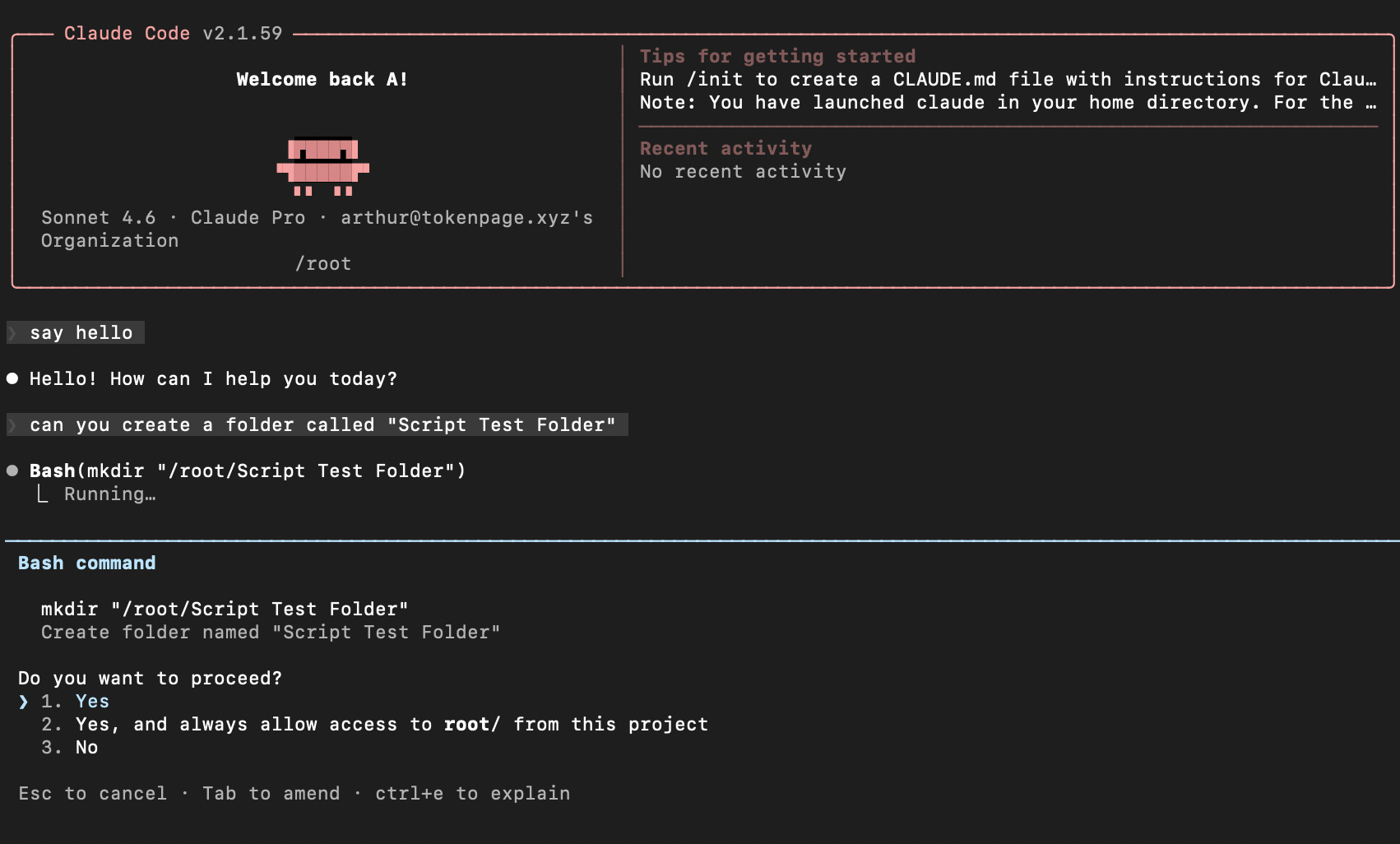
In doing this it’ll ask for your permission to create the folder, just hit Enter and it’ll finish up the job for you!
Next let’s get it to write a super simple script within that folder that grabs the live price of Bitcoin, Ethereum and Solana.
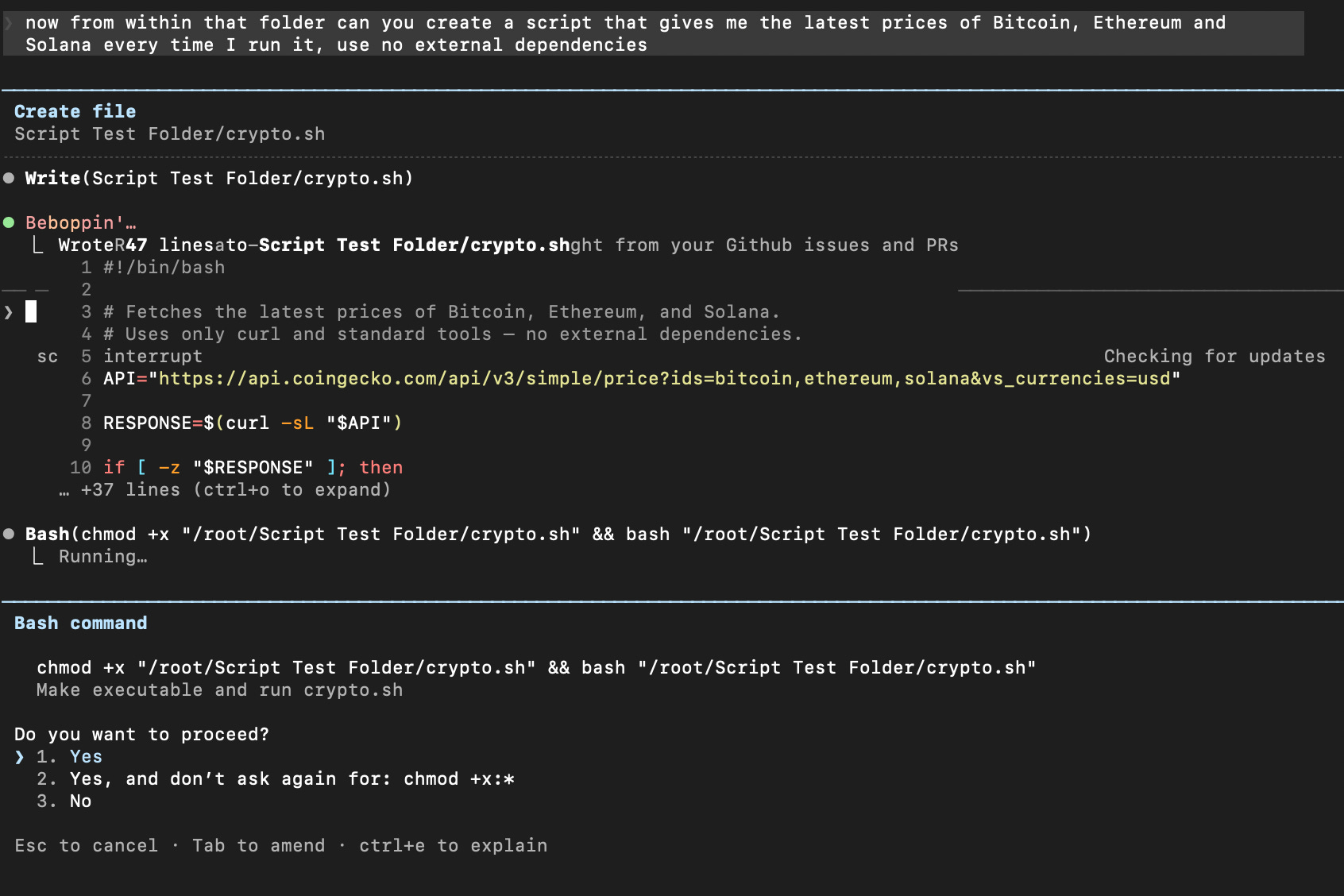
Once again it’ll ask you for permssion to create the file and we should hit Enter to let it generate that file within the folder.
And now let’s ask Claude to literally “run the script you just created”.
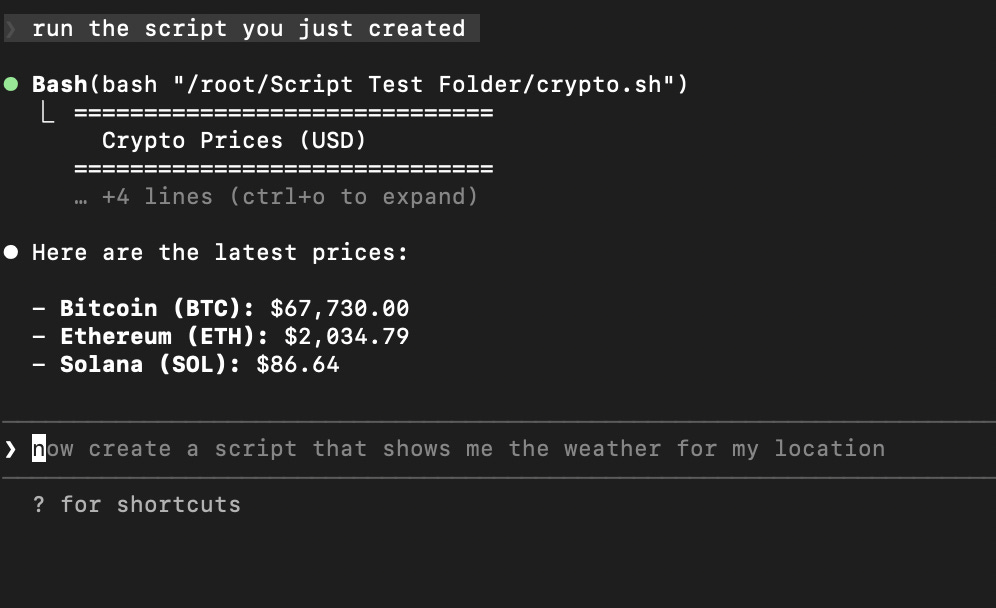
There we have it, the latest BTC, ETH and SOL prices!
See how easy and powerful the Claude Code CLI is, with just 3 prompts we created a folder and a little script.
We could do far more interesting things here like get it to build out full projects if we wanted to, with the example above we’re literally just scratching the surface.
Use your new powers wisely
You now know how to use Claude Code’s CLI. It’s important to note though that Claude Code can in principle do anything the user can, so it’s not without its risks.
Theoretically Claude Code can suffer from prompt injection when reading something online that forces it to download malicious software to your computer, delete important folders, or steal some of your credentials.
However, as you saw Claude has been programmed to constantly ask for permission before it goes off and takes any action. This is a guardrail that Anthropic has put in place to reduce the chance of it doing something malicious, yet although it reduces the risk it isn't a hard technical barrier and it can still be gamed.
Nonetheless in practical terms it’s incredibly unlikely that Claude will be able to string together a set of complex tasks that download and install something without you noticing, the more realistic concern is it stealing credentials as that can be done by just reading a file and copying the value over the Internet to another computer.
The easiest way to avoid this is to just not give Claude “root” access or too many privileges, and to not run it from within a folder with secret information like passwords. By simply doing this you’ll generally avoid most of the problems that can arise.
Now I’ve kept this post intentionally simple and short just to get you started, especially given I’ve already shown how powerful Claude Code is in my previous post.
So take this newfound knowledge and go out and explore your new coding powers!

Whenever you’re ready, these are the main ways I can help you:
Want high returns? Earn up to 14% APY with Yieldseeker!
Love Web3 & AI insights? Follow @afoxinweb3 on X!
New to crypto? Join our beginners community to master crypto fast!
Building a Web3 app? Get our expert product development support!